




TL;DR Summary: Docker commands are vital for managing images and containers, streamlining DevOps practices. This cheat sheet provides essential commands such as docker run, docker stop, and docker stats for quick reference.
Basic commands include docker images and docker container.
Additional resources include the Docker documentation.
Containerization technologies have revolutionized the software development landscape. By allowing developers to package applications and their dependencies into isolated environments known as containers, they have simplified the development process, enabling applications to run consistently across various environments. Docker is one such example of a leading platform in the containerization space.
What does Docker do?
Docker’s purpose is to build and manage compute images and to launch them in a container. Docker enables managing microservices, facilitating efficient resource utilization, and accelerating application delivery, making it a vital tool for modern DevOps practices.

Here’s a cheat sheet on the top Docker commands to know and use. (
Images and containers
The docker command line interface follows this pattern: docker
    docker images
docker container
The docker images and container commands grant access to the images and containers. From here, you are permitted to do something with them, hence:
    docker images
Docker container
There are some basic docker commands:
- is lists the resources.
- cp copies files/folders between the container and the local file system.
- create creates new container.
- diff inspects changes to files or directories in a running container.
- logs fetches the logs of a container.
- pause pauses all processes within one or more containers.
- rename renames a container.
- run runs a new command in a container.
- start starts one or more stopped containers.
- stop stops one or more running containers.
- stats displays a livestream of containers resource usage statistics.
- top displays the running processes of a container.
View resources with ls
    docker images ls
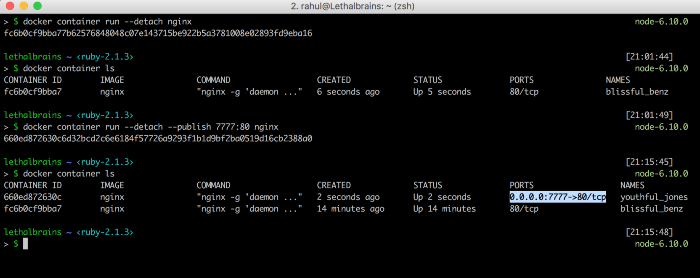
docker container ls
From the container ls command, the container id can be accessed (first column).
Control timing with start, stop, restart, prune
- start starts one or more stopped containers.
- stop stops one or more running containers.
- restart restarts one or more containers.
- prune (the best one!) removes all stopped containers.
    docker container stop
docker container start
docker container restart
docker container prune
Name a container
docker run -d -name myfirstcontainer
View vital information: Inspect, stats, top
    docker container inspect

docker container top
docker container stats
- stats displays a live stream of container(s) resource usage statistics

- top displays the running processes of a container:

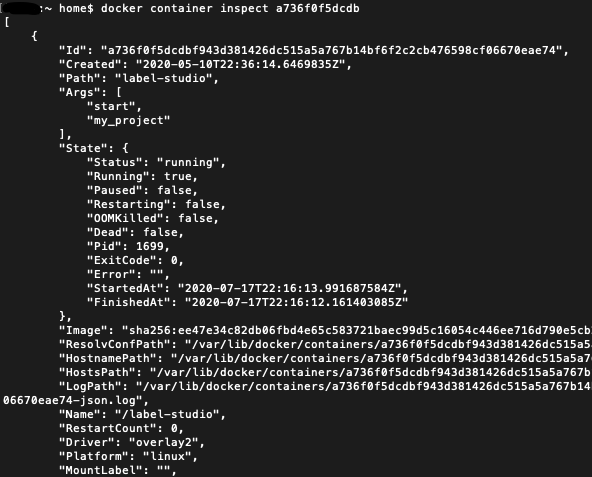
- inspect displays detailed information on one or more containers. With inspect, a JSON is returned detailing the name and states and more of a container.
Additional resources
For more on this topic, there’s always the Docker documentation, the BMC DevOps Blog, and these articles:
Docker Guide
These postings are my own and do not necessarily represent BMC's position, strategies, or opinion.